Thursday, September 24, 2009

Customize a Flash Video Player with playlist in the easiest way

Many people think it’s very difficult to realize playing videos on their own website, blog, forum or e-store, because it’s difficult for them, who don’t know any coding knowledge, to customize an own-branded web Flash video player like YouTube player for web. So if they want to play videos on their own website, they have to compress their videos size to 10 mins or smaller and upload to YouTube, and then get the embed codes of the videos for embedding onto website. Although they know the drawbacks like the videos will belong to YouTube, the video quality will be lower, etc.

In fact, it’s not difficult to customize a skinning web FLV player any more. Here, I will introduce a way to customize a skinning web FLV player with full-screen capability and playlist. At present, this way is the easiest one, which only needs a few mouse clicks.

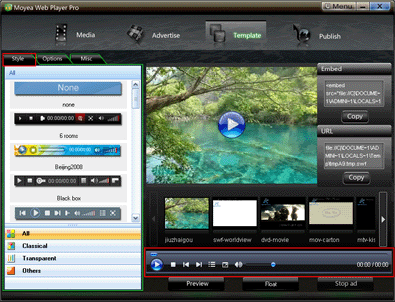
Below is the tutorial shows how to customize the above flash video player with a few mouse-clicks on Moyea Web Player.

Step 1: Open Moyea Web Player on your PC

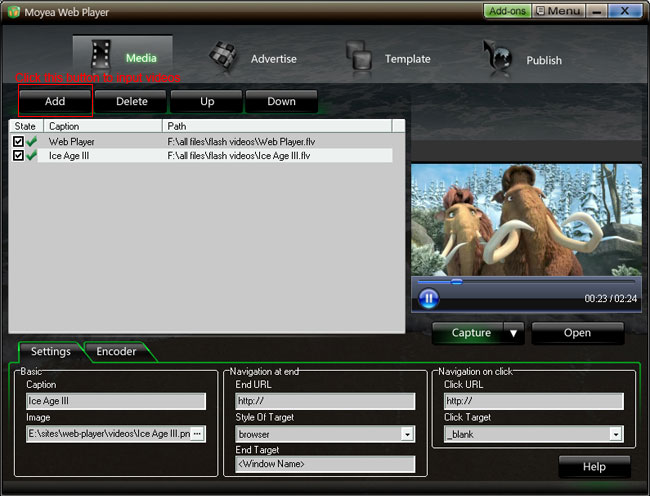
Step 2: Input flash videos you want to play on webpage into Moyea Web Player (If your videos are not flash videos, please convert them to).
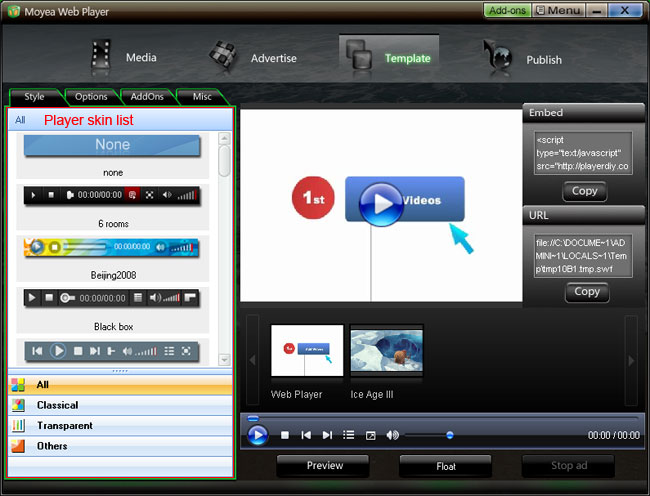
Step 3: Choose a player skin(here, I use the default one), and remove the embed code area.
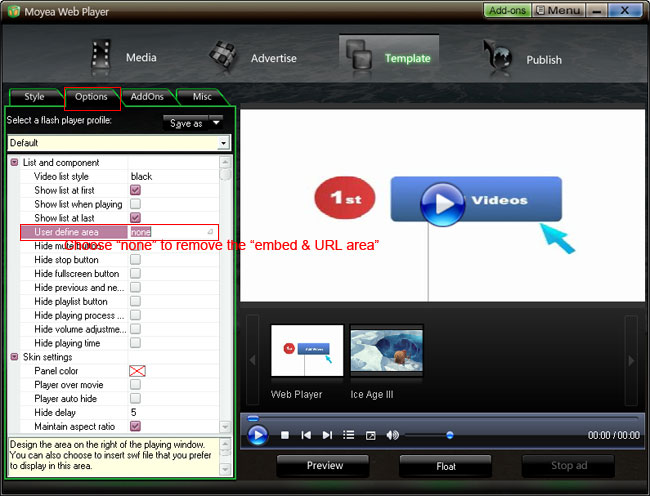


Check "Auto choose next" to make the player can player next video automatically
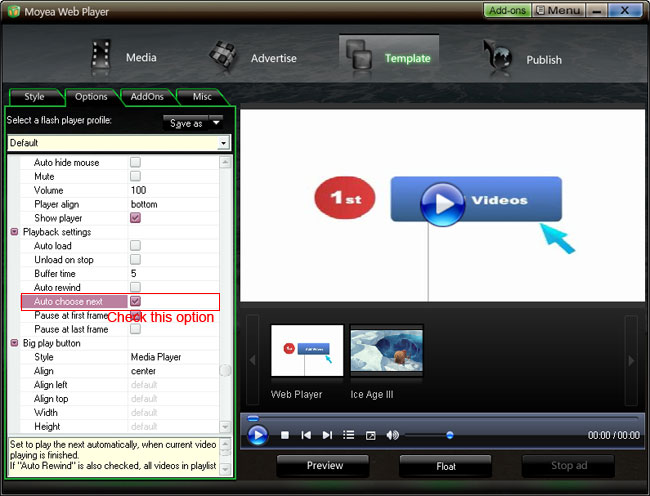
Step 4: Click “Publish” button to generate a web flash video player and other related files (Note: if you want to get a separate playlist file, please check “Out File”)

Step 5: Upload all the published files except the index.html file, to the same folder of your web server

Step 6: Embed the generated web video player onto your webpage with the embed code below (you can get it on the generated index.html file):


Player will show here

Note:
1. No tag outside the embed code.

2. mwplayer.swf is the actual flash video player. If it resides in another directory, then point to it with a relative path (e.g. /player/mwplayer.swf) or an absolute path (e.g. http://www.yourdomain.com/player/mwplayer.swf ).
For example:


Player will show here

3. '500','450' is the width and the height of the player, you could change them to change the player size.

Step 7: The flash video player will appear on your website. Have a look at the above demo.

Thursday, September 17, 2009

Video Search And Google Analytics Plugins Is Released For Web FLV Player

Video search plugin and Google analytics plugin were released in Moyea to make the web FLV player, which created with Moyea Web Player, get the abilities of searching and playing videos from video sharing sites and abilities of tracking events of it and displaying the results in Google analytics account.


Moyea Web Player is a web FLV player creator. It can be used to create skinning streaming FLV player and FLV player for web sites to play streaming videos and flash videos with no any coding. And its various capabilities can be got extended via addons.


After released advertising and watermark plugins in May for extending the functions of the created web FLV player on advertising and branding, these days, Moyea has released Video search plugin and Google analytics plugin to enable the created web FLV player to play videos from video sharing sites and to track the events within it.


Video Search Plugin:Video Search Plugin was released on Sep.4, 2009. With it, the web FLV player, which created with Moyea Web Player, has the ability of searching and playing videos from almost all video sharing sites like YouTube, Google video, Dailymotion, etc., and the player owners don’t need to host any video on their web sever but users can view any video they want to watch. It’s a so powerful and useful plugin for web FLV players!


Google Analytics Plugin:Google Analytics Plugin is a free plugin released on Sep.1, 2009. It is used to track the events within the created web FLV player and display the results in Google analytics account, so that player owns can easily know and analyze the information of the player and the videos in player.


Google Analytics is not strange for most of internet users, but most of them only know it’s a good internet tool for tracking and analyzing information of website like traffic, entering keywords, bounce rate, etc. In fact, it also can be used to track and analyze events in web FLV players, that’s because Google has public the API to enable developers to develop plugins to make it for relevant use.


Moyea Web Player with easy-to-use feature is on its way to becoming more and more professional web FLV player creator via extending its capability with addons. And no doubt, these two plugins with functions to enable web FLV player to search and play videos from internet, to track events within web FLV player, can help it become more powerful and professional.


More information:

Company site: http://www.moyeamedia.com

Product site: http://www.playerdiy.com

Product page: http://www.playerdiy.com/configuration/addons/vidsearch.html http://www.playerdiy.com/configuration/addons/googlytics.html

Source is FLV player DIY

Friday, March 13, 2009

How to convert SWF to FLV

1. Download Moyea SWF4Tube Converter, http://www.playerdiy.com/flash-video-converters.html
Launch it on PC. Moyea SWF4Tube Converter is a tool to convert SWF to FLV, MOV, MP4, 3GP,3G2.

2. Input Flash Files:
①Click "Browse…"tab to input flash files from your computer folder. Click "V" immediately behind, a drop list will cascade automatically. Choose among "From Folder", "From IE cache" and "Flash Projector", and there will be a dialog box accordingly pops up. Choose files in those dialog boxes and click "OK". On the right of pane are the properties of current playing flash.

Tips: On opening the window, you will get "Single Mode" conversion, if you have many files to convert; you are suggested to choose "Batch Mode" on the top left.


3. Export Settings
Click "Export" tab in menu, and you will get the following windows.


4. Conversion
①Click "Convert" in the menu, the program will automatically start performance test to find the best capture speed, if you did not checked "No performance testing". To guarantee an accurate result, you are suggested to interact with the flash when it asks you to.

②After performance testing, the program will come with the capture interface, then you can process your manual capture flash file for conversion.

Tuesday, March 10, 2009

How to free convert video to FLV (free video to FLV converter)

1. Download and install Video4Web Converter from moyea. This tool is a freeware. It is a professiona and easy to use video to flv converter. Then run the program, you will see the main interface.


2. Click "Add" button to import the video file to the video to flash video converter, then you will see the interface of the program below.

3. Then you can start your settings for your conversion. Open the style and profile drop-down bars to select the target conversion format for your specific needs like playback on iPod, iPhone, Apple TV, PSP, Zune. After this, please open output drop-down bar to specify where to save your converted files.


4. Previewing the video is a good choice for you. Under the preview window, you can click the button to capture the still pictures to save on your PC for enriching the picture collection.

5. If you want to the best effects from the output, you can click "Customize" button to set effects of video brightness or contrast and audio volume, trim duration time, and crop video file. In addition, you can tick to modify the image effects in flipping and deinterlace.


6. Start to run the program by clicking the button. After this, you can confirm the converted file on your PC by hitting open button. Here all the preparing work is finished. Then you can transfer the converted file to meet your specific needs for enjoyment.


---
Want to make a flash video player for your website with ease? Check this article "How to make a flash video player for your website to control the playback of FLV files"

Wednesday, March 4, 2009

Three ways to put Youtube video to your website

Let's suppose this scene -
I have made my own website, now I want to add a video from Youtube to my website. And I heard there is a way to put youtube into my site instead of making my own video sharing program... is this possible?

Yes, it is possible, in reality it is rather easy. Now I introduce three ways to put Youtube video to your website, hope it helps.

1. On each page of Youtube video, look on the right side of the video, it should say "embed" without quotes, the code in this "embed" text box is for users to embed the video to web page, then open the source file of your website with Dreamweaver or notepad and copy the code to the web page.

2. Firstly download the Youtube video to your computer with Leawo Youtube Download, which is totally free, then use Moyea web player to add the video from your computer to website. With Moyea web player, you can also design a skinnable media player on your website, it is a flash video player maker that provides quick and easy solution to add videos to web pages and embed a skinnable flash video player to website.

3. Just link it to in your website. This is the simplest way. In your website, you can just add the link to the video on Youtube.

Saturday, February 28, 2009

Redirect to a URL after flash video (FLV) movies finishes playing - Solutions

Easy solution for this problem -
In just three steps

1. Download Moyea web player, which is a flash video player maker that provides quick and easy solution to add videos to web pages and produce the html page with the embedded skinnable flash video player to put on your website as well. Lanuch the program in your PC.

2. Import Flash videos to the programs.

3. In the "Settings" tab, you'll find "Navigation at end" menu, here you enter the URL you want to direct to in the "End URL" text box, choose "browser" as "Style Of Target".

Done!

Thursday, February 19, 2009

Softwares, programs that can play FLV (Flash video)

On Windows if you double-click on a video file it will open in whatever video player you have installed. However, most common video players don't support Flash Video format (FLV's). So, double clicking on a Flash Video file generally does nothing.

So I have seen a lot of people on the Internet asking these questions - "How do I play FLV (Flash video) on my computer?" "Which program can play FLV file" "Which is the best flash video player?"

Wouldn't it be great if when you try to open a Flash Video it opens up in a Video Player so you can watch it?

Well, now you can.

Here I make a list of softwares that can play FLV on computer. Hopefully it can help you.

- VLC media player
This player can be used in most operating systems, and can play just almost all video formats, including FLV (Flash video). The latest version is 0.9.


More screenshots here.

- FLV Player by Martijn de Visser
FLV Player is a standalone application to play Flash .flv files with. It is totally free, mainly used on Windows machine. Just as the reviewer said "Does exactly what it says. Much better than another product I had previously. Haven't found anything wrong yet." The latest version is 2.0.25.


- Moyea web player, it is free
Moyea web player can also play FLV, it is a flash video player maker that provides quick and easy solution to add videos to web pages and produce the html page with the embedded skinnable flash video player to put on your website as well. In addition, it enables you to add as many advertisements (Ads) as you like into any video at any point-in-time, regardless of the number and kind of the Ads.


- The lastest version of Real player 11.0
As you have seen, the old version of RealPlayer cannot play FLV, so you must update it to version 11.0 or download a new one from its website.

- Media Player Classic
Maybe not many people Media Player Classic can play FLV, but it just can. I try it on my computer and it just play FLV well. In reality I use it on almost all my videos.

- MPW Player - Multimedia Web Player

This player is either a video and audio player, it supports media formats like MP3 and FLV, moreover, it is Open Source. The latest version in this year is 2.0.


- OS FLV - The Open Source, Embeddable FLV Player
The OS FLV Player is an Open Source, embedable player for Flash native video files. The player provides a large amount of options that can be changed in the embed code, a code generator written in javascript, a library of PHP functions, and, of course, fully open source code.


- flowplayer - video player for the web
Flowplayer is a GPL licensed video player for Web sites. Use it to embed video streams into your HTML pages.


- JW FLV Media Player
The JW FLV Player is the Internet’s most popular and flexible media player.


- And these players, it is said that they can also play FLV, but I'm not sure: mplayer, totem, xine, smplayer...

Moreover, you can use Moyea video4web Converter to convert all popular video formats to FLV, and .mov, mp4, 3gp, 3g2. It is totally free, no watermark, no limitation, no registration, all features are free.